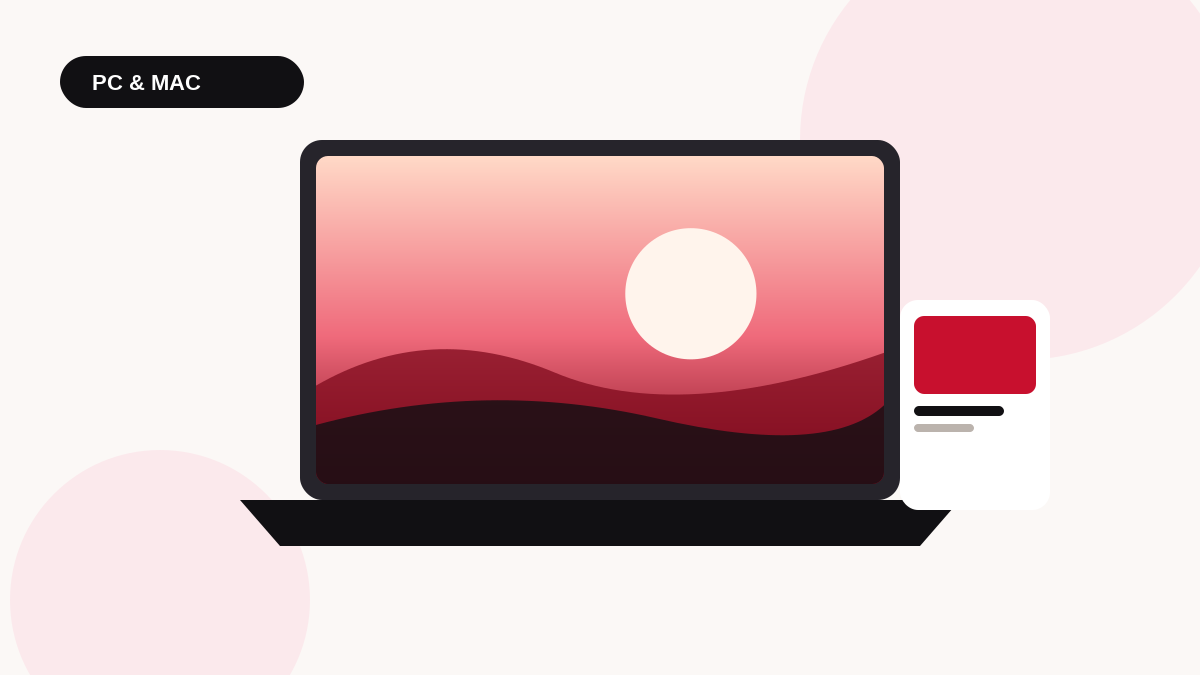
A computer is one of the most flexible ways to watch Zena TV. A laptop turns any room, hotel or holiday home into a viewing spot, and a desktop with a large monitor makes a great personal screen. Computers also have plenty of processing power, so they handle large channel lists and high-quality streams comfortably. Here is how to set Zena TV up on Windows and macOS.
Why watch on a computer?
- Portability: take your entertainment wherever you have good internet.
- Multitasking: follow a match in a window while working on something else.
- Big screens: connect to a TV or monitor with an HDMI or USB‑C cable.
- Easy typing: entering login details with a real keyboard is quicker than with a remote.
What you need
- An active Zena TV plan and the access details we send you.
- A reasonably recent Windows 10/11 PC or Mac with up-to-date software.
- A desktop IPTV player that supports Xtream logins or M3U playlists. We will recommend one that currently works well on your system.
- A stable connection: about 10 Mbps for HD, 25 Mbps or more for 4K.
Setting up Zena TV on Windows
- Install a player. Get the player we recommend from the Microsoft Store or from the developer’s official website. Avoid download sites that bundle extra software.
- Add your login. Open the player and choose Add playlist, Add user or Xtream Codes login. Paste the server address, username and password exactly as we sent them, or paste the M3U link if that is what you received.
- Load the content. The first load downloads the channel list, film and series catalogue and TV guide. Give it a minute or two.
- Personalise. Add favourites, hide categories you do not need and set your preferred quality. Our favourites and TV guide tips explain how.
If Windows Defender SmartScreen shows a warning when installing a player from a developer’s website, only continue if you are sure the download came from the official source.
Setting up Zena TV on Mac
- Install a player from the Mac App Store, or from the developer’s official site if we recommend it. macOS may ask you to confirm that you want to open an app downloaded from the internet.
- Enter your Zena TV details in the player’s login or playlist screen.
- Wait for the first sync, then organise favourites and categories.
- Use the keyboard shortcuts many Mac players offer, for example the space bar to pause and F for full screen.
Apple Silicon Macs (M-series chips) decode HEVC very efficiently, which makes them excellent for 4K streams while staying cool and quiet.
Sending the picture to a TV
- HDMI or USB‑C cable: the most reliable option. Connect the computer to the TV and choose the matching input.
- AirPlay (Mac): many recent TVs support AirPlay. It is convenient, but depends on a strong Wi‑Fi connection.
- Screen casting (Windows): Windows can project to compatible TVs and adapters via Cast (Win + K). Quality depends on your network.
For everyday living-room viewing, a dedicated streaming device is usually more convenient. See our device buyer’s guide.
Performance tips
- Plug the laptop into power. Some laptops reduce performance on battery.
- Use Ethernet or 5 GHz Wi‑Fi, and pause large downloads or cloud syncs while watching.
- Close heavy browser tabs and apps if playback stutters.
- Enable hardware acceleration or hardware decoding in the player settings when available.
- Keep graphics drivers (Windows) and macOS up to date.
Troubleshooting
Login rejected
Copy and paste the details again, making sure there are no spaces at the start or end. Check that you used the correct login type (Xtream login and M3U link are different options).
Audio but no picture
Switch the player’s decoder between hardware and software, or update your graphics drivers.
Stuttering in 4K only
Try the Full HD version of the channel. If that is smooth, your connection or computer may not keep up with 4K at that moment.
Firewall or antivirus blocking playback
Some security software blocks unfamiliar apps from the network. Allow the player through your firewall if you trust its source.
Next steps
Once your computer is set up, you can add Zena TV to your TV, phone or tablet as well. If you get stuck, send us a WhatsApp message with your operating system, player name and a screenshot, and we will help you finish the setup.