With more than 50,000 live channels and 70,000 films and series, Zena TV offers an enormous amount of choice. That is wonderful, but only if you can find what you want quickly. The good news is that modern IPTV players include tools that turn a huge line-up into a personal, tidy TV experience. This guide shows you how to use the most valuable ones: the TV guide, favourites, hidden categories and parental controls.
Menu names vary between player apps, so treat the steps below as a map rather than exact button labels. If you cannot find a setting, our team can point you to it for your specific player.
Why these features matter
Most households regularly watch a few dozen channels at most. Setting up favourites and hiding unused categories takes about fifteen minutes once, and saves time every single evening afterwards. Parental controls, meanwhile, give peace of mind when children use the same screen.
Set up the TV guide (EPG)
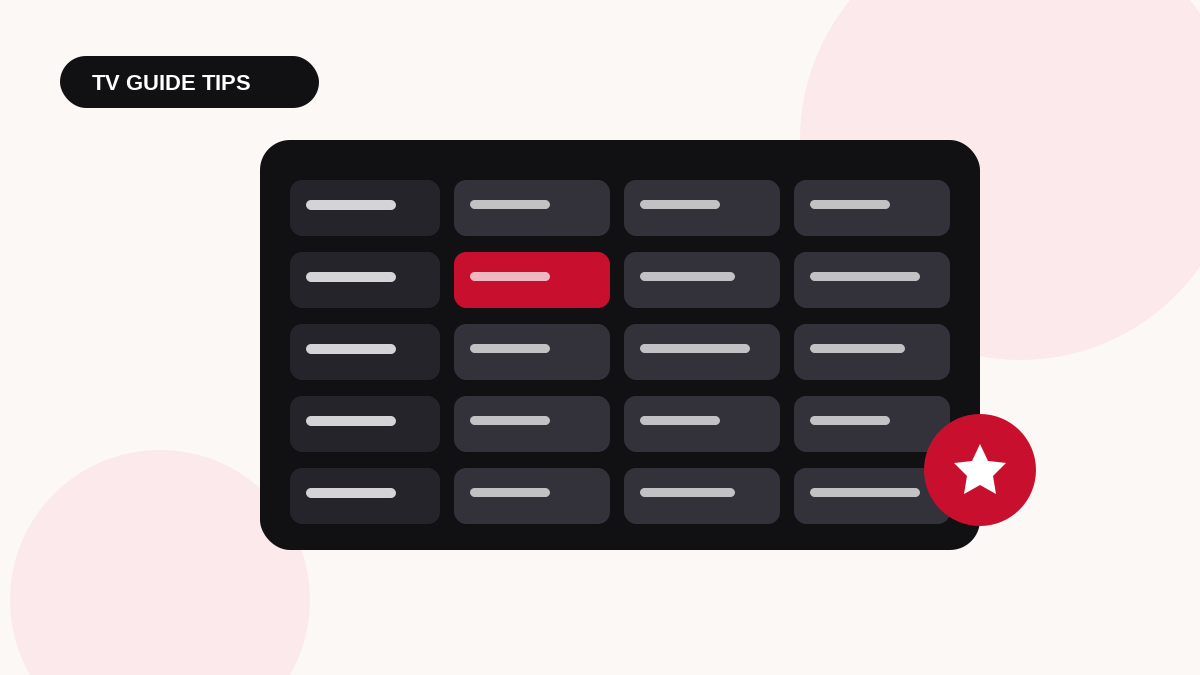
The electronic programme guide shows what is on now and next, and often the schedule for the coming days.
- Check that the guide is enabled. In most players it loads automatically with your Zena TV login. Some players using an M3U playlist need a separate EPG link, which we can provide.
- Refresh it. Look for Update EPG or Refresh TV guide in the settings. Doing this after the first login, and occasionally afterwards, keeps the schedule accurate.
- Set your time zone. If programme times look shifted by an hour or more, adjust the time zone or EPG offset in the player settings.
- Use the grid view. Many players offer a full-screen grid that is perfect for browsing the evening schedule.
Build favourites lists
Favourites are the single most useful feature in any IPTV player.
- While browsing channels, long-press OK on the remote, or use the star or heart icon, to add a channel to favourites.
- Do the same for films and series you plan to watch later.
- Some players allow several favourites lists, for example “News”, “Kids” and “Sport”, or one list per family member.
- Reorder favourites so the channels you watch most appear first, and you can move through them with just the up and down buttons.
Hide categories you never watch
Zena TV groups channels by country and genre. If you never watch certain regions or genres, hiding them makes browsing much faster. Look for Hide categories, Manage groups or Edit playlist in your player, then untick the groups you do not need. You can always show them again later.
Add parental controls
Most IPTV players include a PIN-protected parental lock:
- Open the player settings and find Parental control or Lock.
- Create a PIN that children will not guess, and keep it to yourself.
- Select the categories or individual channels to lock. Adult categories, horror films and late-night channels are common choices.
- Test it: try opening a locked category and make sure the PIN is requested.
For younger children, a separate device or user profile containing only a kids favourites list is often the simplest approach. Many TVs and streaming devices also have their own system-level parental controls, which work alongside the player’s lock.
More settings worth exploring
- Resume playback: lets films and episodes continue from where you stopped.
- Recently watched: a quick way back to channels you used earlier.
- Catch-up: on channels and players that support it, you may be able to watch programmes that have already aired. Availability varies by channel.
- Subtitles and audio tracks: some films and channels offer multiple languages; switch them from the playback menu.
- Stream format and decoder: if a channel stutters, switching between hardware and software decoding can help.
When something seems to be missing
If a category disappeared, check whether it was hidden by accident. If a channel you added to favourites stops working, the line-up may have changed; refreshing your playlist often brings an updated version. For anything else, message us with your player name and a screenshot, and we will help.
Still choosing hardware? Read our streaming device guide, or learn how to watch Zena TV on a computer.